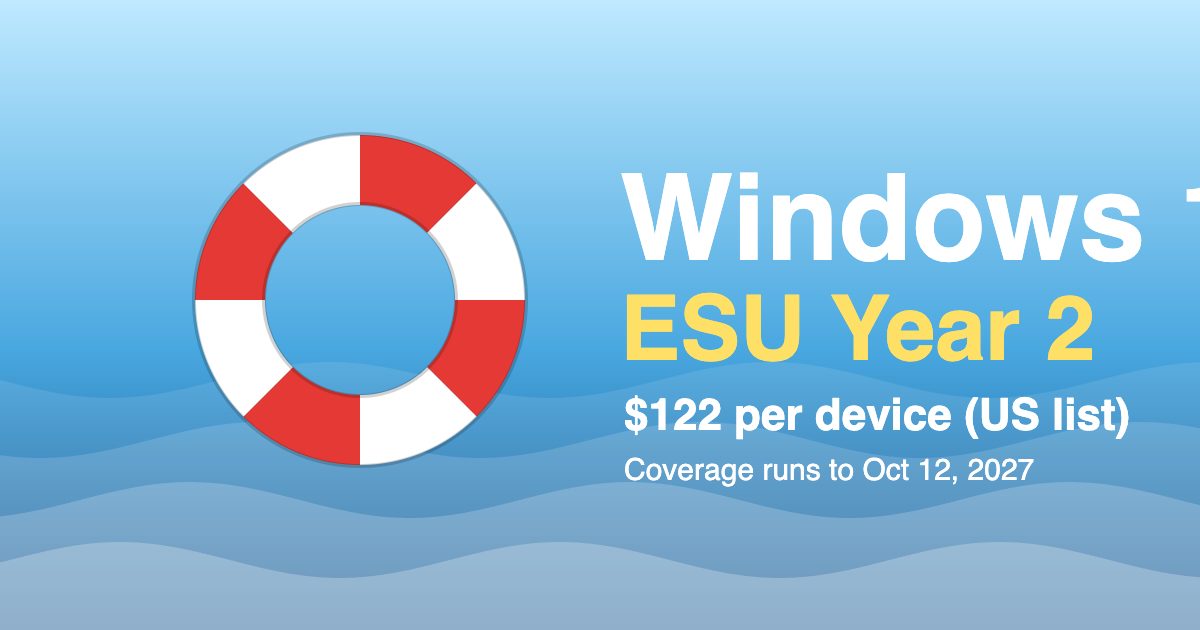
Microsoft’s 2026 lifecycle schedule places several important dates on October 13. Office 2021 applications, including Word, Excel, Outlook, PowerPoint, Access, Project, Publisher, and Visio, are listed for retirement on that date. Microsoft also lists Windows 11 Home and Pro version 24H2 and Dynamics 365 Business Central on-premises version 26.x as reaching the end of servicing. [1]
These milestones are easy to overlook because they do not all represent the same type of change. An Office product retirement means the product leaves its supported lifecycle. Windows 11 version 24H2 reaching end of servicing is a version-level event, not the end of Windows 11 as a platform. The response should therefore be matched to the product and edition in use.
What the lifecycle page says
Microsoft’s lifecycle guidance states that products at retirement or end of support no longer receive new security updates, non-security updates, free or paid assisted support, or online technical content updates. [1] The exact effect depends on the lifecycle policy and product, but the operational message is consistent: unsupported software increases risk and limits the options available when something breaks.
Office 2021 is particularly important in organizations that still use perpetual desktop applications. A retirement date does not automatically uninstall the software, and the applications may continue to open. Continued operation should not be confused with continued support. Organizations may still have legal, security, compatibility, or audit requirements that make unsupported applications unacceptable.
Windows 11 version 24H2 is a different case. Organizations need to determine whether devices are running the Home or Pro release covered by the October 13 date and whether the applicable servicing path has moved them to a supported version. Enterprise and Education editions appear on a separate November 10 lifecycle line for version 23H2, illustrating why device edition and version matter.
Why inventory comes first
The most common lifecycle mistake is planning from purchase records rather than actual device and application state. A company may have a Microsoft 365 subscription but still have Office 2021 installed on a group of devices. It may also have multiple Windows versions because new, replaced, and remote devices were onboarded at different times.
IT teams should build a current inventory showing device identity, user, operating-system edition and version, Office installation type, update channel, management status, and last check-in. The inventory should include devices that are rarely connected to the corporate network and machines used by contractors or executives.
If the organization uses Microsoft Intune or another endpoint-management platform, the reporting should be validated against a sample of physical devices. A policy assignment is not evidence that the update is installed. The installed build, last check-in, and exception reason are more useful measures.
Migration choices for Office
Organizations running Office 2021 have several broad choices. They can move to Microsoft 365 Apps, adopt another supported perpetual release when appropriate, or retire desktop applications for a web-first workflow. Each choice has consequences for licensing, offline use, macros, add-ins, document compatibility, and support.
A move to Microsoft 365 Apps may simplify update management and connect the desktop suite to a broader identity and collaboration platform. It also introduces subscription management and a more continuous update cycle. Organizations should not treat it as a simple license swap; they should test business-critical templates, integrations, and compliance controls.
Where an application depends on a legacy add-in or macro, the owner should test the workflow before the deadline rather than discovering the problem during deployment. Unsupported software can sometimes be isolated temporarily, but a documented exception should have an owner, an expiry date, and compensating controls.
What to do with Windows 11 version deadlines
For Windows devices, the immediate question is whether the device can move to a supported release through the organization’s normal update ring. Review hardware compatibility, application testing, disk space, user downtime, and recovery options. Devices that cannot update should be identified for replacement or a formally approved exception.
Update rings should be staged. Start with IT and willing pilot users, then move to a representative business group before broad deployment. Monitor application failures, driver problems, encryption status, and recovery behavior. For remote users, verify that the device can complete the update over a suitable connection and that support is available if it fails.
The business implication
Lifecycle dates are not merely compliance reminders. They are signals that can affect licensing strategy, security exposure, endpoint support costs, and hardware-refresh plans. A business that waits until software is unsupported may be forced into an emergency purchase or an untested deployment.
The sensible response is to turn the October 13 deadlines into an inventory exercise. Separate Office retirement from Windows version servicing, assign owners, test the supported target state, and document exceptions. Guava Systems can help organizations review Microsoft licensing and endpoint readiness without assuming that every customer needs the same migration path.
Sources
• [1] [Ending Support in 2026 — Microsoft Lifecycle](https://learn.microsoft.com/en-us/lifecycle/end-of-support/end-of-support-2026) — accessed October 13, 2026.